
Bank statement to Excel on iPhone, without uploading it
Short answer
If your bank offers a CSV or Excel download, use that — it's exact. For a PDF statement, open it in QuickScan; for a paper statement, photograph it. Either way the iPhone reads it on the device, you check the highlighted cells, and you export an Excel or CSV file. Then check the balance: opening balance + credits − debits should equal the closing balance.
On a computer? Point your iPhone's camera at the code to open QuickScan in the App Store.
3 free exports, then a one-time unlock. No subscription.
Which route fits your statement?
| You have | Best route | Why |
|---|---|---|
| Online banking access | The bank's CSV / Excel export | Exact values, no reading step at all |
| A PDF statement | Open it in QuickScan | Sharp text and straight columns read best of all |
| A paper statement | Photograph it in QuickScan | Read on the iPhone; nothing leaves it |
| Hundreds of pages | Ask the bank for a data export | Scanning page by page doesn't scale |
Why not just upload it to a converter?
A statement shows your name, address, account number, balance and every payee. Most statement converters work by uploading the file to their servers. Some handle that carefully; some keep files for days. QuickScan was built for the opposite case: the text recognition and table detection run on the iPhone itself (Apple's on-device text recognition plus QuickScan's own table detection), so the statement never leaves the phone. You can check: switch on Airplane Mode and scan — it works the same.
How do I convert a PDF statement to Excel on iPhone?
- In QuickScan, tap Open a PDF or file and pick the statement in Files. Or, in Files or Mail, tap Share and choose QuickScan.
- Each page is read on your iPhone and becomes a table: date, description, amount, balance. Up to 10 pages per scan.
- Check the highlighted cells, delete rows you don't need (page headers, “balance carried forward”), and export to Excel or CSV.
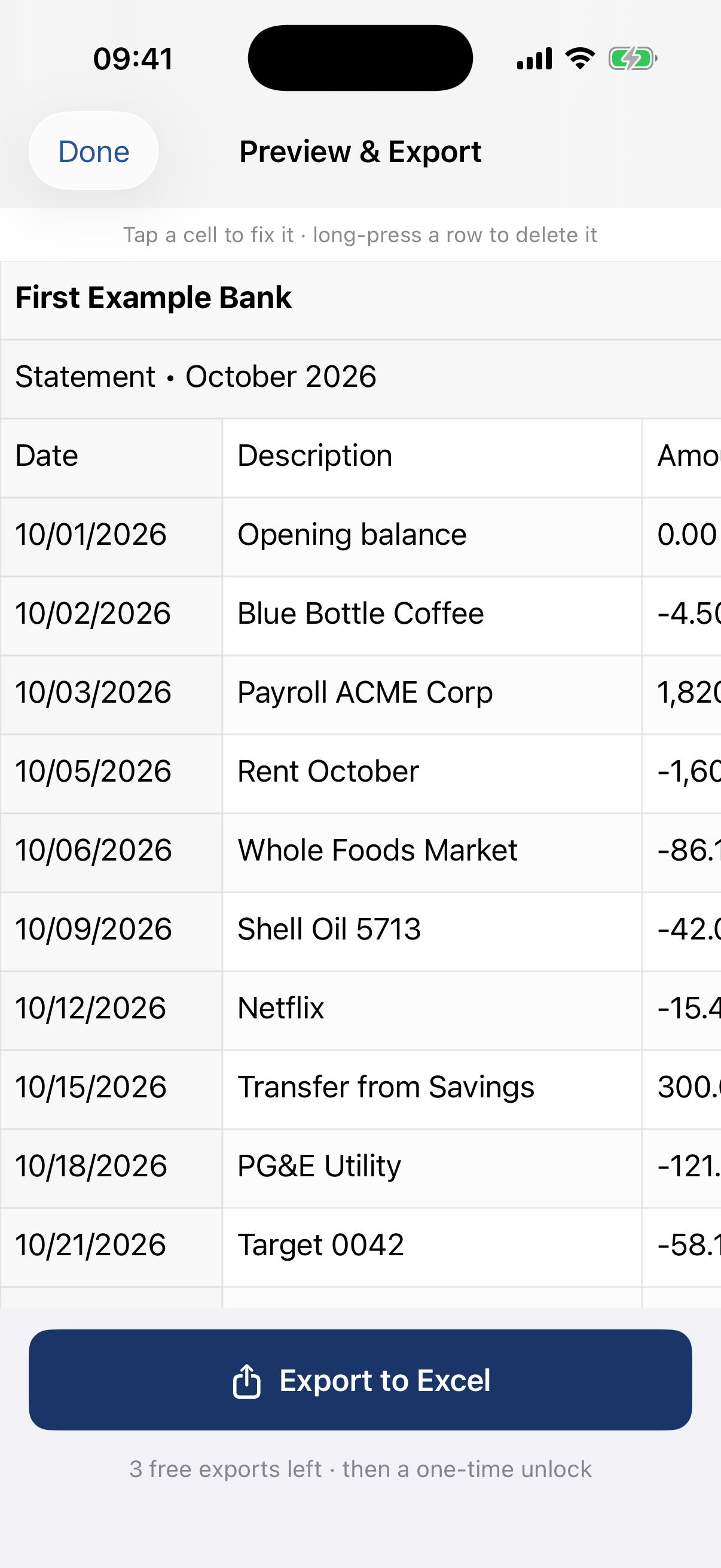
A statement that needs a password to open can't be read: open it with the password and take a screenshot of each page instead. More on PDFs in general: PDF to Excel on iPhone.
How do I convert a paper statement to Excel on iPhone?
- Lay the page flat in good light, without shadows across it.
- In QuickScan, tap Scan a table. The camera finds the page and straightens it. Add every page of the statement in one go.
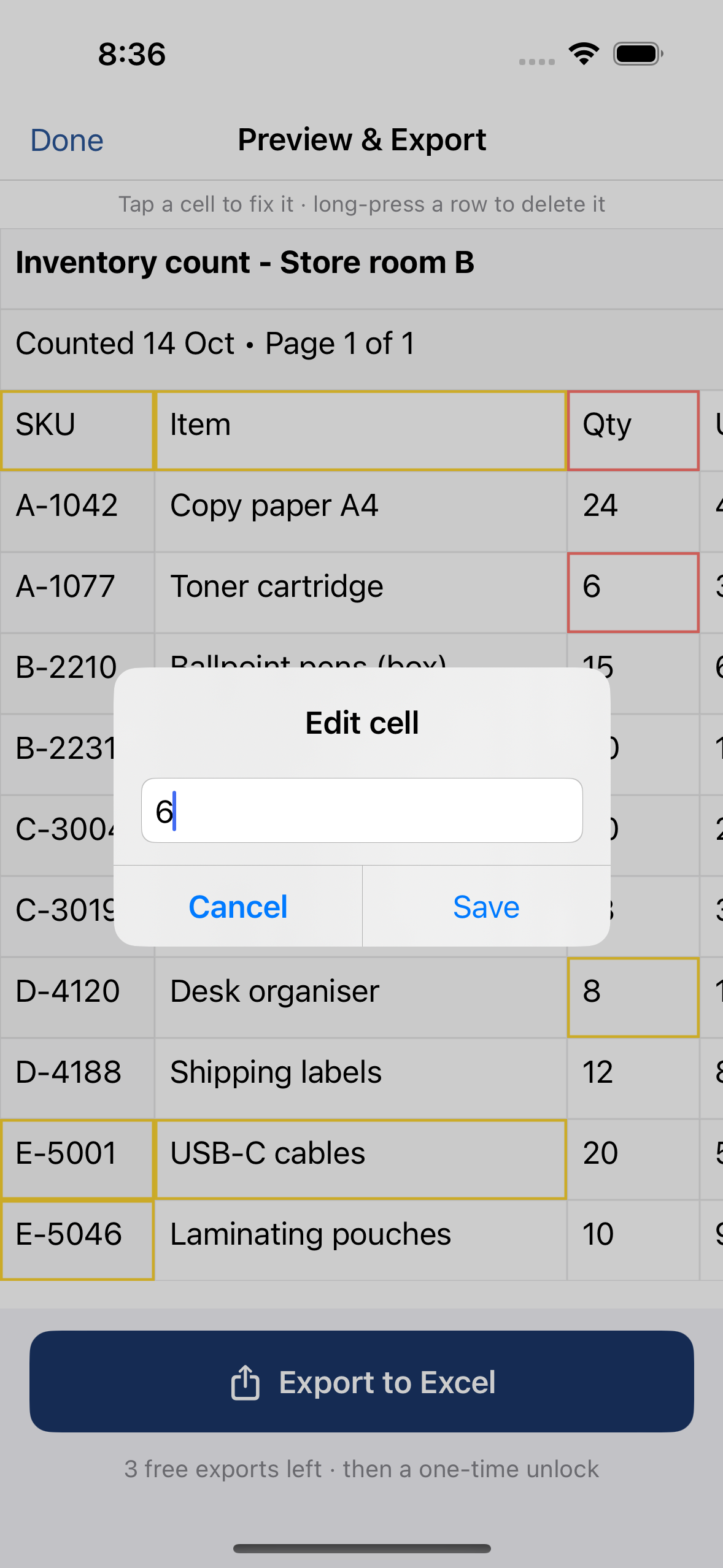
- Look over the highlighted cells — they're the ones QuickScan is least sure about. Tap one to fix it; long-press a row you don't need (a page header, a "balance carried forward" line) to delete it.
- Export to Excel (.xlsx) or CSV and open it in Excel, Numbers, Google Sheets or your accounting tool.
How do I check that nothing was misread?
Any reading of a photo can get a digit wrong, so let the numbers check themselves:
Balance check: opening balance + all credits − all debits should equal the closing balance. In a sheet: =B1+SUM(C:C)-SUM(D:D) next to the closing balance.
Running balance: if the statement prints a balance per line, each line's balance should be the previous one plus the credit or minus the debit. The first line where it doesn't hold is the one to compare with the paper.
Count: the number of rows should match the number of transactions on the paper.
Dates and decimal commas
Statements print dates and amounts in the bank's own format. In QuickScan's Excel file, dates written with a year stay exactly as printed (as text), so Excel can't swap day and month; plain amounts become real numbers, with decimal commas understood from the statement itself. If you work from the CSV instead, open it with the import options described in decimal comma vs decimal point and dates wrong in Excel.
What to expect
- Works well: PDF statements downloaded from online banking, and printed statements with clear columns (date, description, amount, balance), especially with ruling lines.
- Needs more checking: long wrapped descriptions, small print, faint thermal paper.
- Not yet: handwritten entries, and PDFs that need a password to open (screenshot them).
Invoices work the same way — see invoice line items to Excel.
On a computer? Point your iPhone's camera at the code to open QuickScan in the App Store.
3 free exports, then a one-time unlock. No subscription.
Questions
Is my statement uploaded anywhere?
No. QuickScan reads the PDF or photo on your iPhone; there is no account and no server, and it works in Airplane Mode. A PDF you share to QuickScan is deleted from the app once it's read; the original stays where it was, and the exported file goes only where you send it.
Can it read a PDF statement?
Yes. Tap Open a PDF or file in QuickScan, or share the PDF to QuickScan from Files or Mail. Up to 10 pages are read per scan, one sheet per page. If your online banking offers a CSV download, that's exact and even quicker.
My statement has amounts like 1.234,56. Will they come through?
Yes. QuickScan reads the statement's own number format, and its Excel file stores plain amounts as numbers you can sum. Amounts printed with a currency sign stay as text, so check those columns.
Is it safe to use an online statement converter?
It means sending a document with your name, address, account number and every payment to someone else's server. Some services handle that well; if you'd rather not, read the statement on the device or use your bank's own export.