
Invoice line items to Excel on iPhone
Short answer
Photograph the invoice in QuickScan, drag the corners to just the line-item table, check the highlighted cells and export to Excel. Quantities and amounts arrive as numbers, so you can check the totals straight away: quantity × unit price per line, and the sum of the lines against the subtotal. Nothing is uploaded.
On a computer? Point your iPhone's camera at the code to open QuickScan in the App Store.
3 free exports, then a one-time unlock. No subscription.
Copying an invoice's line items into a spreadsheet by hand is slow, and one wrong digit spoils the total. Photograph it instead and get the rows as cells — on your iPhone, without sending a document full of names, addresses and bank details anywhere.
How do I convert an invoice photo to Excel on iPhone?
- Lay the invoice flat in good light. In QuickScan, tap Scan a table.
- Before you keep the scan, drag the corners to just the line-item table. The address block and payment terms stay out.
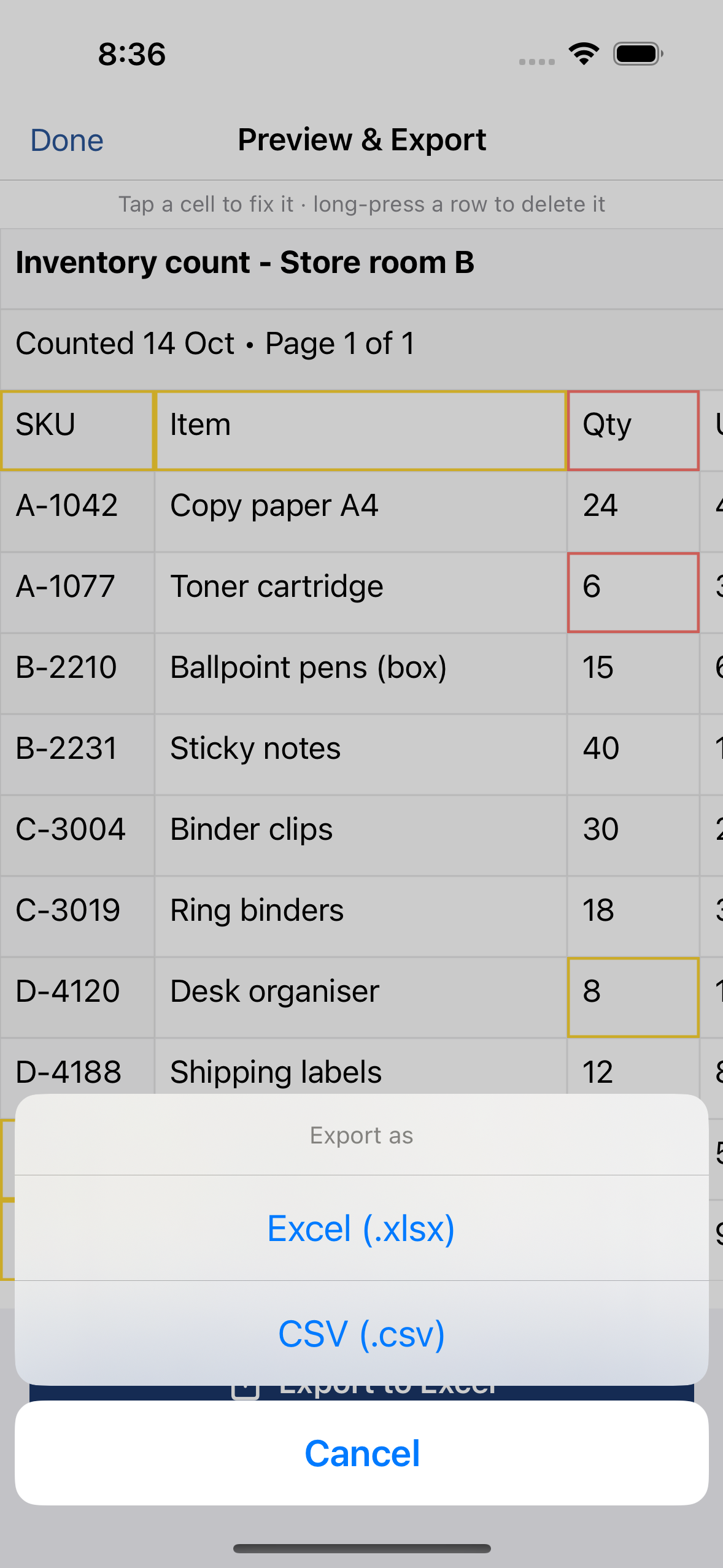
- Check the highlighted cells and tap any that are wrong to fix them. Long-press a row you don't need to delete it.
- Tap Export and choose Excel (.xlsx) or CSV. Open it in Excel, Numbers, Google Sheets or your accounting tool.
Several invoices? Scan them in one go: each becomes a page of the same export — one sheet per page in Excel. Invoice arrived as a PDF? Tap Open a PDF or file instead of scanning; see PDF to Excel on iPhone.
How do I check the totals after converting an invoice?
Any reading of a photo can get a digit wrong, so let the spreadsheet check itself. With quantity in column B, unit price in C and line total in D:
Each line: =B2*C2 next to the line total — it should match column D. =B2*C2-D2 shows the difference directly (0 when right).
All lines: =SUM(D2:D20) should match the invoice's subtotal.
The invoice: subtotal + tax should equal the total due.
A line that doesn't add up is the one to compare with the paper. Amounts printed with a currency sign (€12.50) stay as text in QuickScan's Excel file — on purpose, so nothing is guessed — and won't be summed; see numbers stored as text to convert them.
What works, and what needs a closer look
- Works best: printed invoices with a clear line-item table, especially with ruling lines between rows and columns; amounts with a decimal comma or point.
- Needs more checking: dense layouts with very small print, descriptions that wrap over several lines, unusual layouts. Check every highlighted cell and run the totals.
- Not a field extractor: it reads the table, not labels like “Invoice no.” or “Due date” into their own columns.
- Not yet: handwriting, and PDFs that need a password to open (use a screenshot).
Article codes and SKUs
Product codes with leading zeros (00123) and long codes such as barcodes stay as text in QuickScan's Excel file, so Excel can't strip the zeros or turn them into 4.00638E+12. If you open the CSV instead, see leading zeros and barcodes.
Deliveries come with their own paperwork — see delivery notes and packing lists. Statements work the same way — see bank statement photo to Excel.
On a computer? Point your iPhone's camera at the code to open QuickScan in the App Store.
3 free exports, then a one-time unlock. No subscription.
Questions
Is my invoice uploaded anywhere?
No. QuickScan reads the photo on your iPhone; there is no account and no server. The file goes only where you send it.
Does it pick out the invoice number and due date?
No. QuickScan reads tables — rows and columns. It isn't a field extractor: labels like “Invoice no.” or “Due date” come through as rows of text if they're in the photo. Crop to the line items to leave them out.
Can it read a PDF invoice?
Yes. Tap Open a PDF or file in QuickScan, or share the PDF to QuickScan from Mail or Files. Each page becomes a sheet; delete the address and payment-terms rows you don't need before you export.
What about handwritten invoices?
Printed invoices work best. Handwriting is often misread, so check every cell if you try it.