
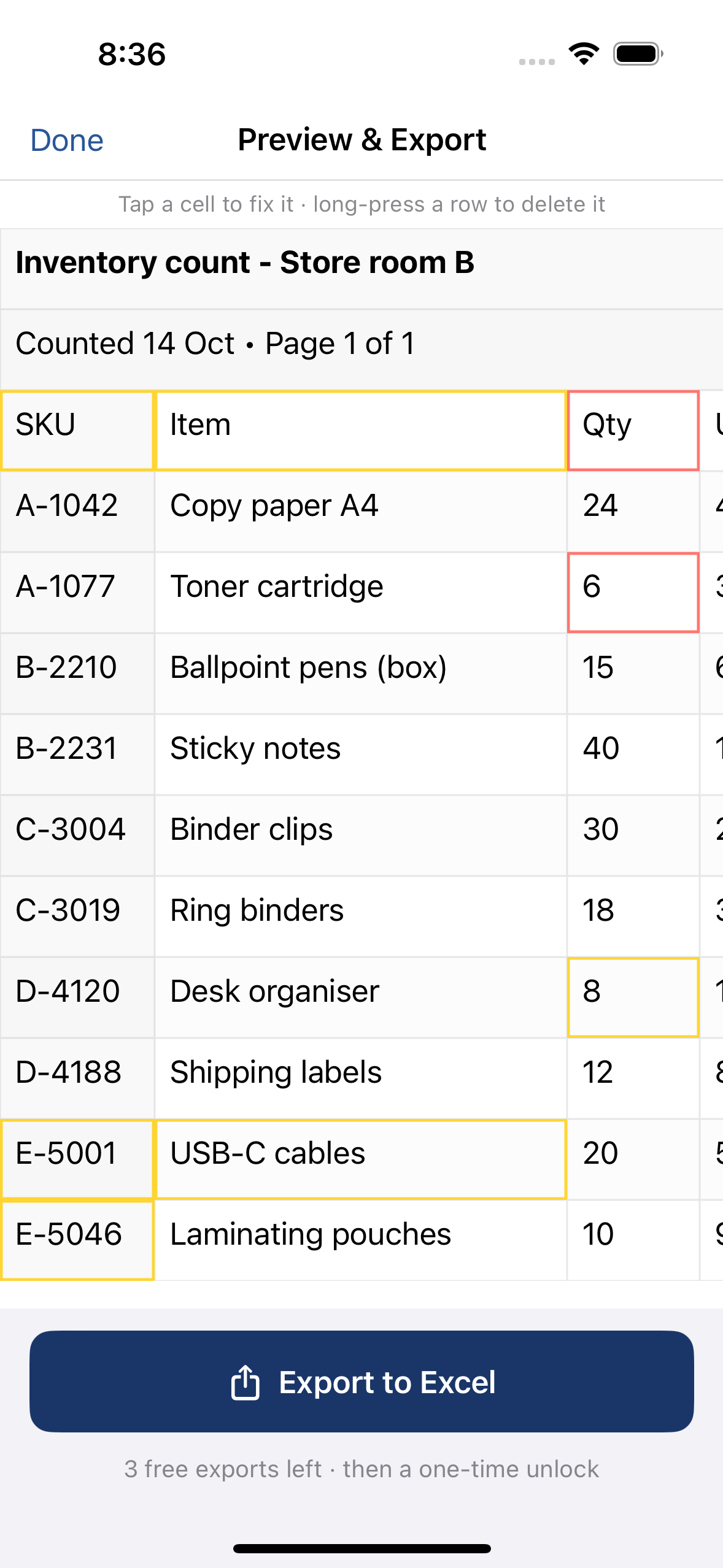
Screenshot of a table to Excel on iPhone
Short answer
Take a screenshot of the table (side button + volume up), crop it to the table, then in QuickScan tap Choose from Photos and pick it. Check the highlighted cells and export to Excel or CSV. Screenshots read better than photos: the text is sharp and straight.
On a computer? Point your iPhone's camera at the code to open QuickScan in the App Store.
3 free exports, then a one-time unlock. No subscription.
A table in a web page, a PDF, an email or someone else's spreadsheet often can't be copied cleanly on a phone. A screenshot always can — and it makes the easiest input for turning a table into cells.
How do I convert a screenshot of a table to Excel on iPhone?
- Take the screenshot: press the side button and volume up together. Zoom in first so small text is readable.
- Crop it: tap the thumbnail and drag the edges to the table. Leaving out menus and headers keeps stray rows out of your sheet.
- Open it in QuickScan: tap Choose from Photos and pick the screenshot — or several, for a long table.
- Check and export: look over the highlighted cells, tap any that are wrong, then export to Excel (.xlsx) or CSV.
Other ways, and when they're enough
| Way | Good for | Watch out for |
|---|---|---|
| Copy the table directly | Web pages on a computer | On a phone, selection often breaks rows apart |
| Live Text (press and hold on the screenshot) | A few values | Copies text, not cells — a table pastes into one column (fix) |
| Excel's “Data from Picture” | Microsoft 365 users, online | Needs a Microsoft account; the image is processed online (details) |
| QuickScan | Whole tables, offline, private | Check highlighted cells before you export |
Tips for a clean result
- Zoom so the table fills the width of the screen before the screenshot.
- For a long table, take several overlapping screenshots and pick them together; each becomes its own sheet in the Excel file.
- Spreadsheet gridlines help: they mark the columns exactly.
- Dark text on a light background reads most reliably — switch the app or site to light mode before the screenshot if you can.
What reads less well
Tables drawn as images inside images (a photo of a monitor, a blurry chart), cells that wrap text over several lines, and very small text. A photo of a screen is the worst case — always prefer a real screenshot.
On a computer instead? The same screenshot works there too: AirDrop it to your iPhone. For tables you'd rather paste into Numbers, see copy a table from a photo into Numbers.
On a computer? Point your iPhone's camera at the code to open QuickScan in the App Store.
3 free exports, then a one-time unlock. No subscription.
Questions
Why do screenshots convert better than photos?
The text is sharp, evenly lit and perfectly straight. Gridlines in a spreadsheet screenshot also tell QuickScan exactly where the columns are.
Can I convert several screenshots into one file?
Yes. Choose them together in Photos; each becomes a page of the same export — one sheet per page in Excel.
Does it work with a screenshot of a PDF?
Yes, but you don't need one: QuickScan opens PDFs directly. Tap Open a PDF or file, or share the PDF to QuickScan. A screenshot is still the way for a PDF that needs a password to open.
Can I copy the table instead of taking a screenshot?
If the table is on a web page, selecting and copying it often works in desktop browsers. On a phone, or in an image or PDF, a screenshot is usually the quicker route.