
Turn a printed price list into an Excel sheet
Short answer
Photograph each page of the price list in QuickScan (or open a PDF one), check the highlighted cells, and export to Excel — one sheet per page. Prices arrive as numbers you can sort and compare; product codes keep their leading zeros. Then add your own columns: margin, last price, a second supplier's price with XLOOKUP.
On a computer? Point your iPhone's camera at the code to open QuickScan in the App Store.
3 free exports, then a one-time unlock. No subscription.
Wholesalers, cash-and-carry counters, drinks and produce suppliers, trade catalogues: plenty of price lists still arrive on paper or as a PDF meant for printing. Retyping them into a sheet to compare suppliers or cost a menu is slow, and one shifted row puts the wrong price against a product.
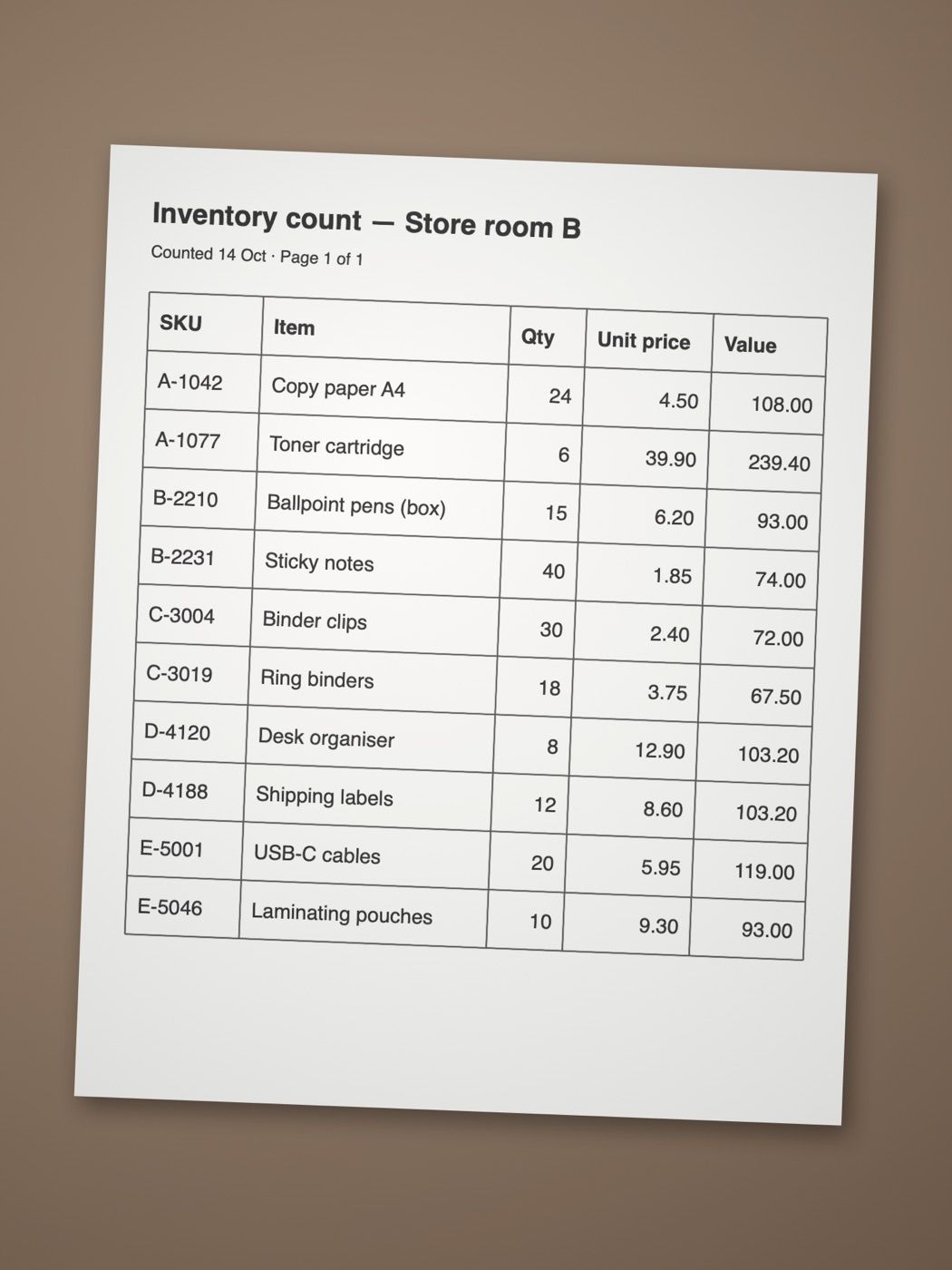
The photo
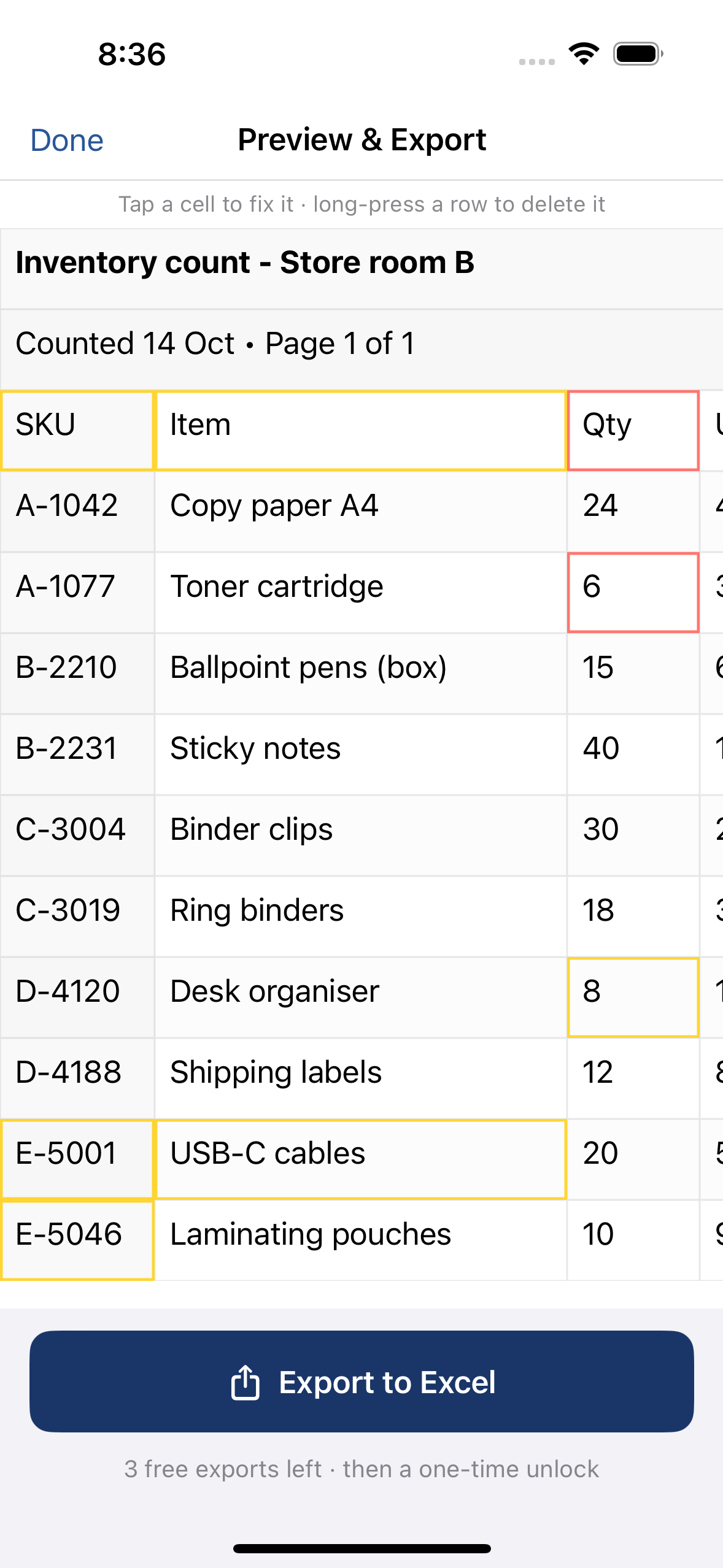
The table in QuickScan
How do I turn a printed price list into an Excel sheet?
- Lay the page flat in good light — no shadow across the price column.
- In QuickScan, tap Scan a table and capture every page in one go. For a PDF, tap Open a PDF or file instead.
- Check the highlighted cells, especially prices. Tap to fix; long-press a row to drop section headings you don't want.
- Export to Excel (.xlsx). Each page becomes its own sheet.
Put the pages into one list
Copy each sheet's rows under the first one, or in Excel use Data › Get Data › From File › From Excel Workbook (Power Query) and append the sheets. Remove repeated header rows afterwards — sort by the first column and delete the duplicates of your header.
Check the prices
- Sort the price column high to low: a misread decimal shows up as an outlier at the top (
450instead of4.50). - Spot-check five rows against the paper, including the first and last of each page.
- Count rows per page against the printed list.
Costing a menu or comparing suppliers
With the list in a sheet, the useful columns are yours to add:
Price per unit: =C2/D2 — case price divided by units per case, so a 6-pack and a 12-pack compare fairly.
Second supplier: =XLOOKUP(A2, Other!A:A, Other!C:C, "") — the other list's price for the same code, side by side.
Change since last list: keep last month's sheet and look up the old price the same way; =C2-E2 shows what went up.
Match on product codes rather than names where you can — names differ between suppliers and between list editions.
Currency signs and decimal commas
QuickScan reads the list's own number format, so 4,50 on a European list and 4.50 on a UK one both become the number four and a half. Prices printed with a currency sign or unit stay text on purpose; remove the sign with Find and Replace, then convert (how). More on separators: decimal comma vs decimal point.
What to expect
- Works well: printed lists with clear columns — code, description, pack size, price — especially with ruling lines.
- Needs checking: very small print, descriptions that wrap onto two lines, section headings mixed into the table.
- Not yet: handwritten prices and corrections.
Deliveries against the list? See delivery notes and packing lists.
On a computer? Point your iPhone's camera at the code to open QuickScan in the App Store.
3 free exports, then a one-time unlock. No subscription.
Questions
Can I convert a PDF price list?
Yes. Tap Open a PDF or file in QuickScan, or share the PDF to QuickScan from Mail or Files. Up to 10 pages are read per scan, one sheet per page. Or ask the supplier for the list as a spreadsheet.
Will prices come through as numbers?
Plain prices (4.50, 4,50, 1.234,56) become numbers in QuickScan's Excel file, shown with their decimals. Prices printed with a currency sign or a unit (for example 4.50/kg) stay text so nothing is guessed — strip the sign or unit to calculate with them.
Can it read handwritten price changes?
Not reliably. Printed prices read well; handwritten corrections on the list need checking by eye.
How do I compare two suppliers' lists?
Export each list to its own sheet, then use XLOOKUP (or VLOOKUP) on the product code or name to pull the other supplier's price next to yours.