
Copy a table from a photo into Numbers on iPhone
Short answer
Live Text copies the words in a photo but not its rows and columns, so a pasted table lands in one column. To get real cells, scan the table with QuickScan, check the highlighted cells, export to Excel (.xlsx) and choose Numbers in the share sheet — it opens as a table. For a few values, Live Text plus the free paste-to-columns tool works too.
On a computer? Point your iPhone's camera at the code to open QuickScan in the App Store.
3 free exports, then a one-time unlock. No subscription.
Can Numbers turn a photo of a table into cells?
Not by itself. Numbers places a photo as an image. Apple documents Live Text for copying text out of photos, and Notes can hold tables, but as of October 2026 there's no documented way to copy a photographed table into Numbers as cells. Excel has a photo import (Data from Picture); Numbers doesn't.
What Live Text does with a table
Live Text recognizes text, not table structure. What you copy is text in reading order — sometimes one row per line, sometimes one cell per line — so a pasted table doesn't keep its cells. That's fine for a handful of numbers. For a whole price list or timetable it's slow, and a value that slips into the wrong column is easy to miss. If you've already pasted, here's how to rebuild the columns.
Three ways to get the table into Numbers
- Type it. For five or ten values, typing is quickest.
- Live Text, then rebuild the columns. Open the photo, press and hold on the text, tap Select All or drag over the table, and tap Copy. Paste it into the paste-to-columns tool, which splits it back into columns, then copy the result into Numbers. Check every value.
- A table scanner. QuickScan finds the rows and columns itself and gives you a file Numbers opens as a table. The steps are below.
How do I copy a table from a picture into Numbers on iPhone?
- Tap Scan a table and photograph it straight on — or Choose from Photos for a photo or screenshot you already have.
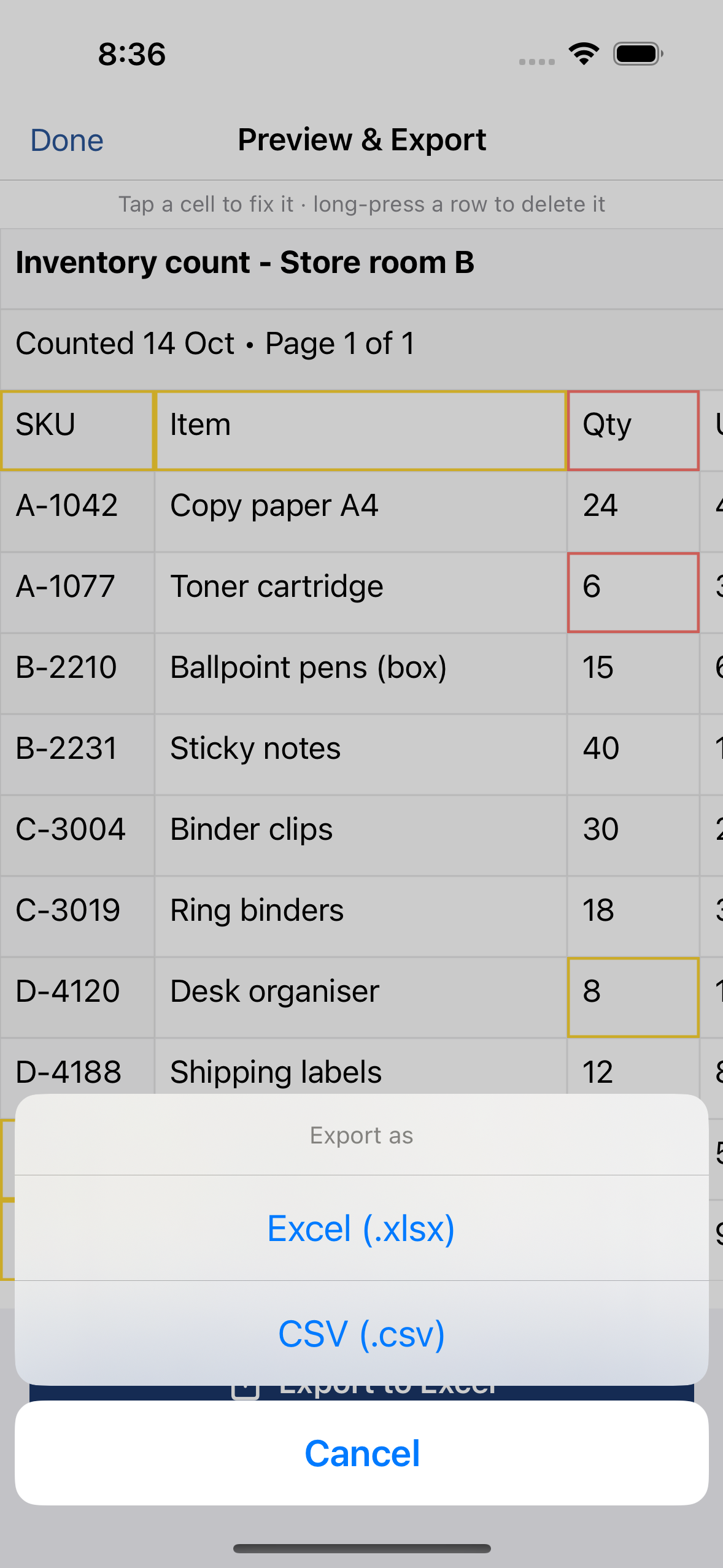
- Check the highlighted cells. Tap a cell to fix it; long-press a row to delete it.
- Tap Export, choose Excel (.xlsx), then pick Numbers in the share sheet. The table opens as cells.
Have the table on screen instead of on paper? A screenshot reads even better than a photo — see screenshot of a table to Excel.
Excel file or CSV for Numbers?
Choose Excel (.xlsx). Numbers opens it directly, each scanned page becomes its own sheet, amounts arrive as numbers, and codes such as 00123 keep their zeros. A CSV is plain text: Numbers decides what each value is when it opens it, and a CSV with semicolons may need Adjust Import Settings on a Mac. More in CSV or Excel: which to export.
Tips for a clean result
- Fill the frame with the table, in good light, without shadows across it.
- Tables with ruling lines come out best: the lines mark the rows and columns.
- In Numbers, numbers align right and text aligns left — a value aligned left may need a second look.
On a computer? Point your iPhone's camera at the code to open QuickScan in the App Store.
3 free exports, then a one-time unlock. No subscription.
Questions
Can Numbers turn a photo of a table into cells by itself?
Not as of October 2026: Numbers places a photo as an image, and Apple documents no photo-to-table import for it. Excel has one (Data from Picture); Numbers doesn't.
Should I export CSV or Excel for Numbers?
Both open in Numbers. Excel (.xlsx) keeps a multi-page scan as one sheet per page and keeps codes and dates exactly as written; CSV is a single plain table.
Is my photo uploaded?
No. QuickScan reads the photo on your iPhone, and the file goes only where you send it.