
Printed stock list or stock report to Excel
Short answer
Printed stock reports — stock on hand, a stocktake list, a location list — scan cleanly: photograph each page in QuickScan, check the highlighted cells, and export to Excel with SKUs kept as text. Hand-filled count sheets are different: the printed columns read well, but handwritten counts need checking cell by cell.
On a computer? Point your iPhone's camera at the code to open QuickScan in the App Store.
3 free exports, then a one-time unlock. No subscription.
Warehouses and stockrooms still run on printouts: a stock-on-hand report from the system, a count sheet for the stocktake, a location list for a cycle count. Getting them back into a spreadsheet to reconcile means retyping hundreds of codes and quantities — exactly where typos hide.
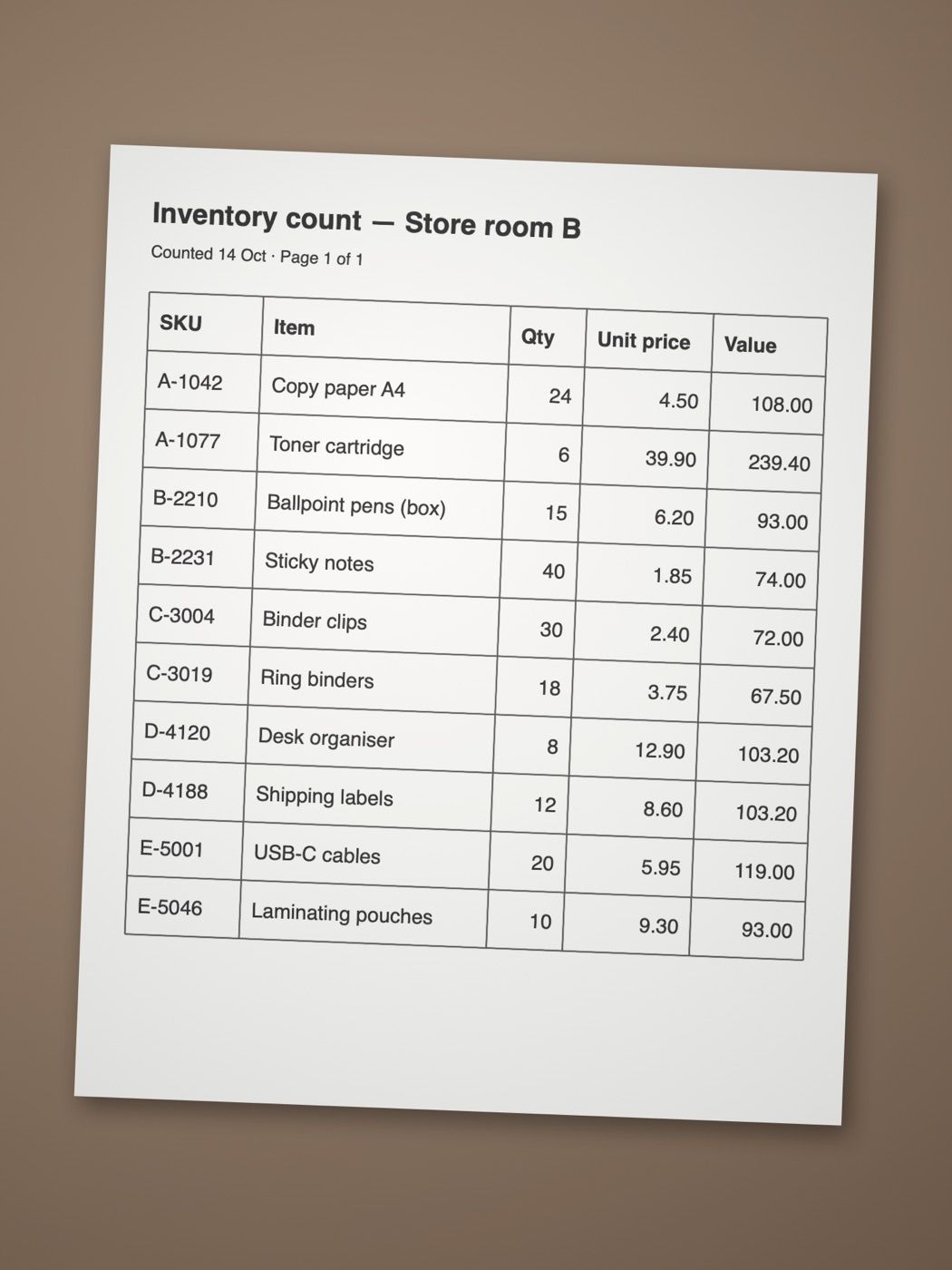
The photo
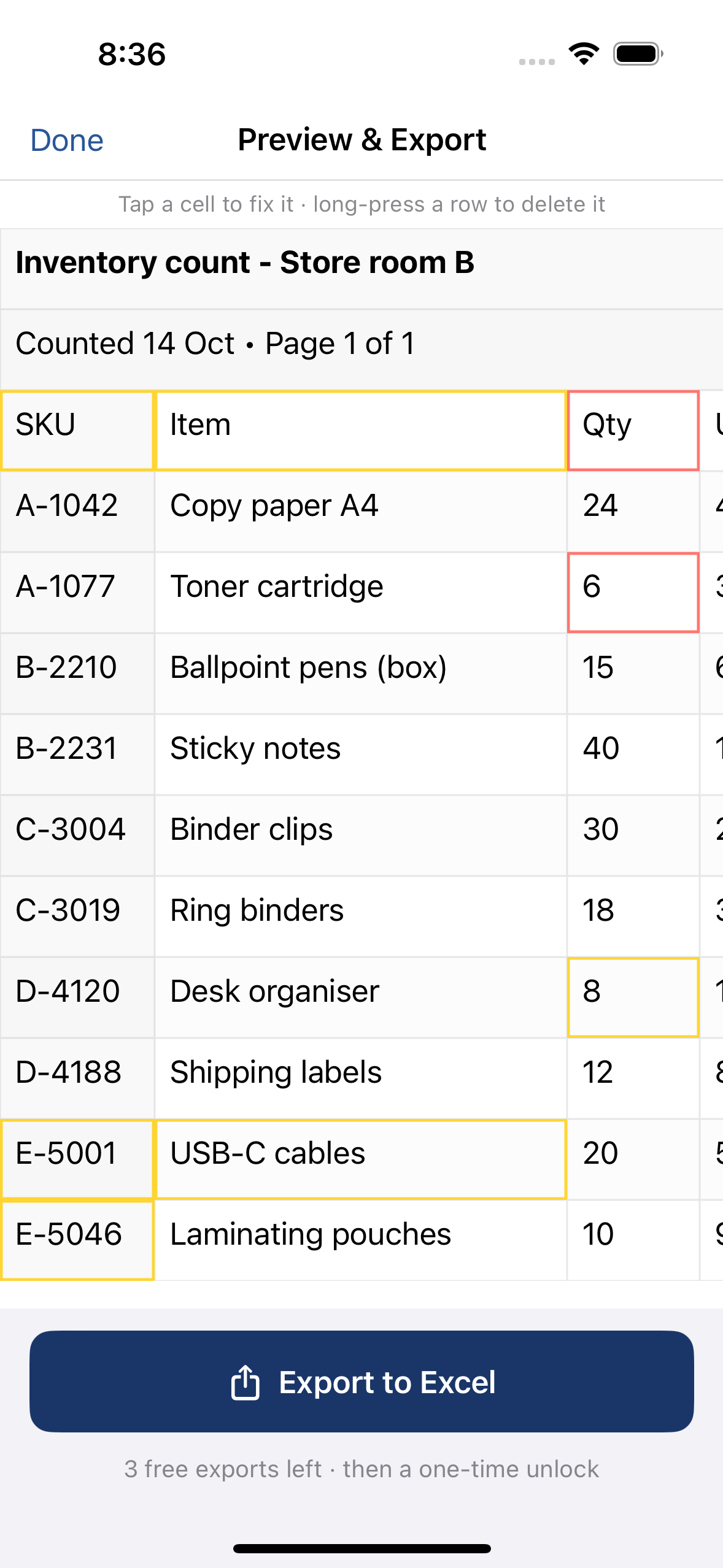
The table in QuickScan
Printouts vs count sheets: what works
| Document | What it holds | How it scans |
|---|---|---|
| Stock report printout | Printed codes, descriptions, quantities | Well — the main use |
| Count sheet, printed | Printed codes and locations, empty count column | Well, before it's filled in |
| Count sheet, filled in by hand | Printed columns plus handwritten counts | Printed parts well; handwritten counts need checking |
| Shelf labels, a full shelf | Barcodes on products | Not this tool — use a barcode scanner |
How do I turn a printed stock list into Excel?
- Flatten each page in good light. In QuickScan, tap Scan a table and capture all pages in one go.
- Check the highlighted cells. For hand-filled sheets, check every count cell, not only the highlighted ones.
- Long-press to delete report headers and page totals you don't need.
- Export to Excel. Each page becomes a sheet; SKUs, part numbers and barcodes are stored as text.
Reconcile counts against the system
With the system's stock export in a sheet called System (code in A, quantity in C) and your scanned count in another:
Expected: =XLOOKUP(A2, System!A:A, System!C:C, "not in system")
Variance: =C2-D2 — counted minus expected.
Value of the variance: multiply by the unit cost, then sort to see the biggest differences first.
If the system export is a CSV, open it with the code column as Text, or 00123 won't match (why).
Tips for count sheets
- Print count sheets with ruling lines and generous rows: lines help QuickScan find the cells, and space helps people write clearly.
- Ask counters to write digits only in the count column — no ticks, crossings-out or notes in the same cell.
- Scan a blank sheet once to see how its columns come out before the stocktake.
What to expect
- Works well: printed reports with clear columns; codes with letters, dashes or leading zeros.
- Needs checking: handwritten counts, faint dot-matrix prints, very long descriptions.
- Not this tool: reading barcodes off products — a barcode scanner or counting app does that.
Goods coming in? See delivery notes and packing lists. Supplier lists: price lists to Excel.
On a computer? Point your iPhone's camera at the code to open QuickScan in the App Store.
3 free exports, then a one-time unlock. No subscription.
Questions
Can QuickScan read a hand-filled stock count sheet?
The printed columns (codes, descriptions, locations) read well. Handwritten counts often don't: check every handwritten cell and correct it in the app before exporting, or type the counts into the sheet afterwards.
Will SKU and part numbers keep their leading zeros?
Yes. In QuickScan's Excel file, codes with leading zeros and long codes such as barcodes are stored as text.
My stock report is many pages long. Do I get one sheet?
You get one Excel file with one sheet per page. Combine them by copying the rows under each other, or with Power Query's append.
Isn't a barcode scanner better?
For counting stock on the shelf, yes — a scanner or a counting app reads codes directly. QuickScan is for the printed lists: reports, count sheets, supplier lists you'd otherwise retype.