
Delivery note or packing list to Excel, from your phone
Short answer
At the dock, photograph the delivery note or packing list in QuickScan and drag the corners to the line-item table. Check the highlighted cells, then export to Excel — it works offline. SKU codes keep their leading zeros and quantities arrive as numbers, so you can check the delivery against the purchase order with one XLOOKUP per line.
On a computer? Point your iPhone's camera at the code to open QuickScan in the App Store.
3 free exports, then a one-time unlock. No subscription.
A delivery note, packing list or packing slip carries the one table that matters when goods arrive: what was sent, in what quantity. Receiving it on paper means retyping it into the stock sheet, the order system or the reconciliation — or checking it line by line by eye. A photo is faster, and the sheet can do the checking.
What's on a delivery note, and what QuickScan reads
| Part | Example | QuickScan |
|---|---|---|
| Line items | Code, description, quantity, unit | Read as a table — the main job |
| Header details | Supplier, PO number, date | Text rows at best, not named fields |
| Handwritten marks | Ticks, shortages, signature | Not reliable — check by eye |
How do I turn a delivery note into Excel at the dock?
- Flatten the note on a surface, out of direct glare. Phone signal doesn't matter: everything runs on the iPhone.
- In QuickScan, tap Scan a table. Before you keep the scan, drag the corners to the line-item table. Multi-page notes: capture every page in one go.
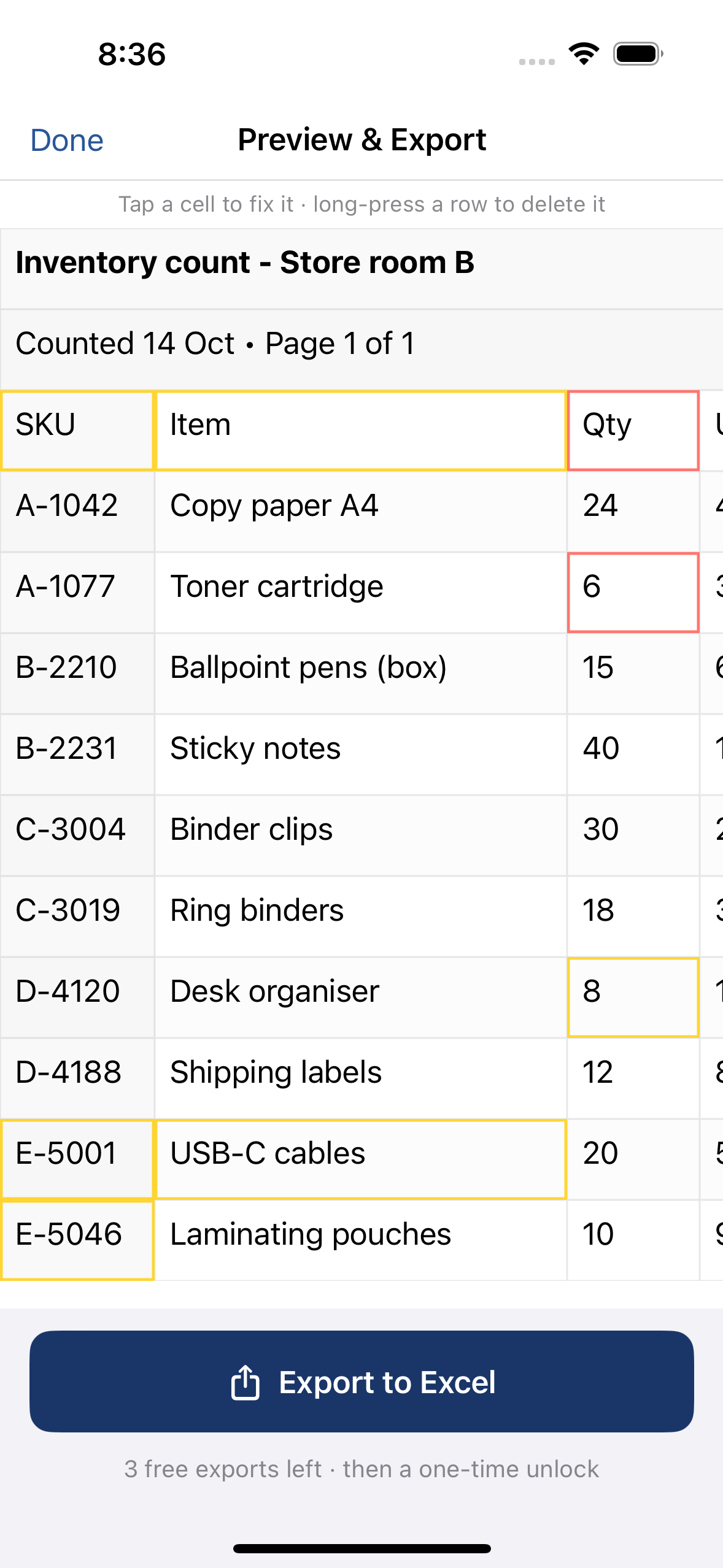
- Check the highlighted cells — quantities first. Tap to fix; long-press to delete rows like “carried forward”.
- Export to Excel and share it to your stock sheet, email or Files.
Check the delivery against the order
Paste the purchase order's lines into a second sheet (PO), with the product code in column A and the ordered quantity in column C. Next to each delivered line:
Ordered: =XLOOKUP(A2, PO!A:A, PO!C:C, "not on PO")
Difference: =C2-E2 — delivered minus ordered; anything other than 0 is a short or over delivery.
Missing lines: on the PO sheet, =XLOOKUP(A2, Delivery!A:A, Delivery!C:C, "not delivered") flags what never arrived.
Codes must match as text on both sides — 00123 doesn't match the number 123. QuickScan keeps codes as text; if the PO came from a CSV, see leading zeros and barcodes.
Kitchens and bars: deliveries against the price list
In catering, the same check runs against the supplier's price list rather than a PO: look up each delivered product's agreed price and compare it with the invoice. Scan the list once (price lists to Excel) and keep it next to the deliveries.
What to expect
- Works well: printed line-item tables, especially with ruling lines; dot-matrix and laser prints in good light.
- Needs checking: faint thermal paper, carbon copies, crumpled notes, descriptions that wrap.
- Not yet: handwritten quantities, ticks and notes — read those yourself.
Counting stock after it's put away? See printed stock lists to Excel. Invoices for the same delivery: invoice line items to Excel.
On a computer? Point your iPhone's camera at the code to open QuickScan in the App Store.
3 free exports, then a one-time unlock. No subscription.
Questions
Does it read the PO number, supplier and delivery date?
QuickScan reads tables. Header details printed outside the line-item table come through as text rows at best, not as named fields — note them yourself, or include them in the photo and keep the rows you need.
Can it read handwritten quantities or shortage notes?
Not reliably. Printed line items read well; handwritten ticks, corrections and signatures need checking by eye. Write discrepancies into the sheet after scanning.
Does it work offline, at the dock or in a van?
Yes. The photo is read on the iPhone, so it works without signal, and nothing is uploaded.
Will SKU codes keep their leading zeros?
Yes. In QuickScan's Excel file, codes with leading zeros and long codes such as barcodes are stored as text, so they open intact.